August 11, 2026
How to Lock an iPad or Android Tablet into Kiosk Mode (Step by Step)
By Alex Berthé-Suarez, LCSW-C, founder of Heerio
If you've ever put an iPad in your waiting room for clients to use, you may have wondered how to prevent someone from accidentally leaving the check-in app.
Or maybe you haven't thought about it until a child decides to explore what else is on the tablet.
Fortunately, both Apple and Android have built-in features that can restrict a tablet to a single app.
And you don't have to be particularly tech-savvy to set them up.
Here's how.
For iPad users: Guided Access
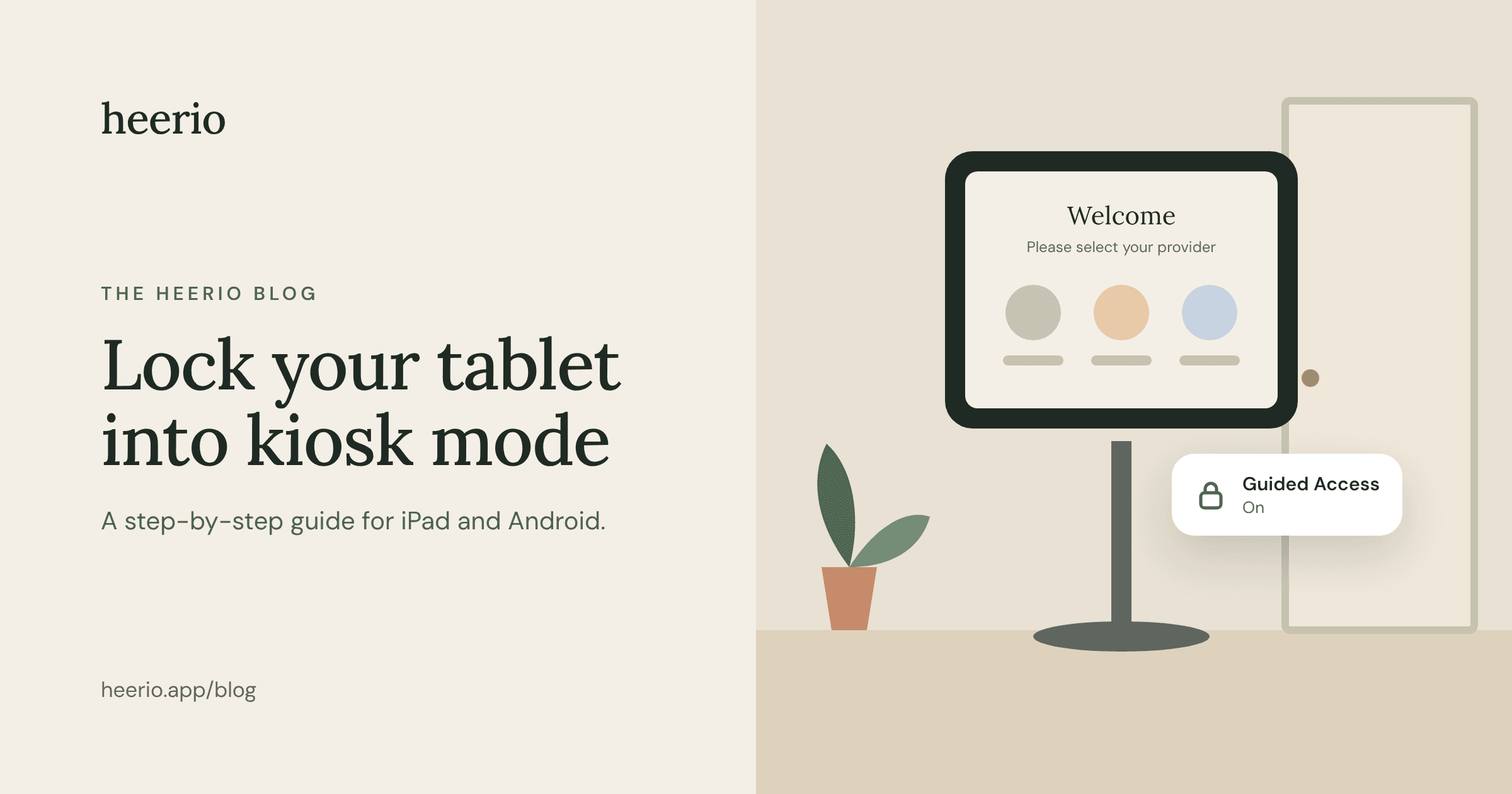
Apple calls its feature Guided Access. It temporarily restricts an iPad to one app, making it useful for a waiting-room kiosk.
To set it up:
- Open Settings.
- Select Accessibility, then Guided Access.
- Turn Guided Access on.
- Under Passcode Settings, create a passcode for ending the session.
- Open your check-in app.
- Triple-click the top button, or the Home button on older iPads.
- Select Guided Access if prompted, adjust any available options, and tap Start.
To exit Guided Access, triple-click the same button and authenticate using the configured method.
Your clients can now use the check-in app without easily wandering into other parts of the iPad.
For Android users: App pinning
Many Android tablets have a similar feature called App pinning.
The exact instructions depend on the manufacturer and Android version, but the general process is:
- Open Settings.
- Search for App pinning.
- Enable it and require a PIN or password to unpin.
- Open your check-in app.
- Open the recent apps overview.
- Select the app icon and choose Pin, if that option is available.
To exit, use the device's unpin gesture or button combination and unlock it.
One important distinction: Android app pinning isn't necessarily a full-purpose commercial kiosk mode. If you're using a shared device in a healthcare setting, review its security settings and consider a dedicated-device management solution when appropriate.
A few suggestions for your waiting room
Choose a sturdy tablet stand. Position the screen where clients can comfortably reach it, including those with mobility limitations.
Keep the tablet charged, avoid exposing other apps or notifications, and make sure clients can easily identify where to check in.
I'd also recommend a simple sign:
Welcome! Please check in here and have a seat. Your provider will be notified.
That's all most people need.
What if you don't want to use a tablet?
That's perfectly fine.
Heerio gives practices three options: a tablet kiosk, a QR code that clients scan with their own phones, or the Heerio for Clients app.
You can even use all three.
I like the appearance of a dedicated check-in tablet, but I also love the simplicity of a QR code. There's no hardware to purchase or maintain, and clients can check in directly through their phone's browser.
Either way, your provider gets notified.