Kiosk
A Check-In Kiosk for iPad and Android Tablets.
The Heerio Kiosk app turns an iPad or Android tablet into a check-in kiosk for your waiting room. Clients tap their provider, and you're notified instantly. Every plan includes it.
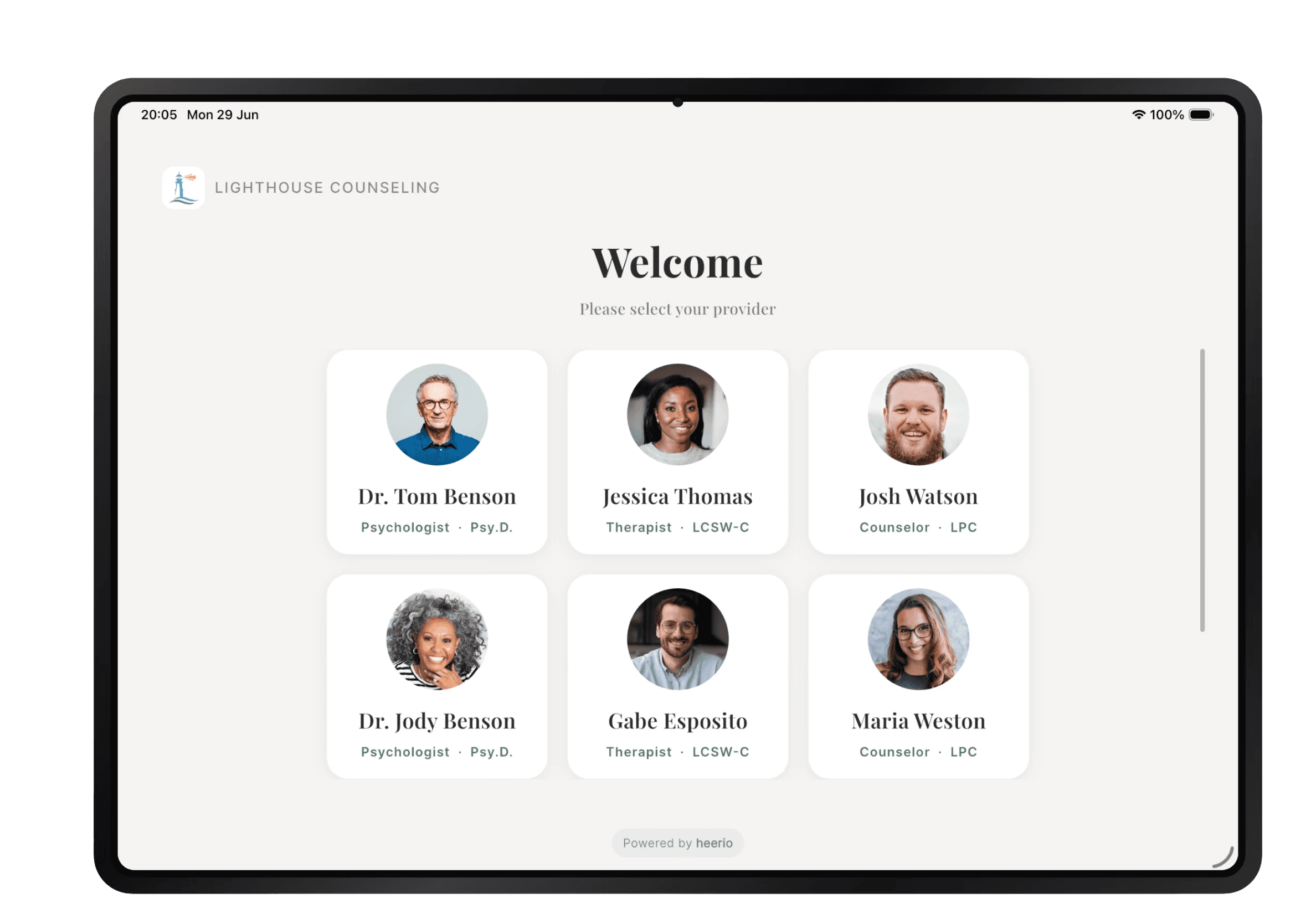
How it works
Step 1. Open the Heerio Kiosk app on your tablet and lock it to Heerio with Guided Access on iPad or App pinning on Android.
Step 2. A client taps their provider on the welcome screen.
Step 3. You get a push notification on your phone, and can reply with one tap, like "I'll be right with you."
Common questions.
Can I use an iPad as a check-in kiosk?
Yes. The Heerio Kiosk app turns an iPad or Android tablet into a check-in kiosk. Clients tap their provider, and you're notified instantly. You can lock the tablet to Heerio using Guided Access on iPad or App pinning on Android.
How do I lock my tablet so clients can only use Heerio?
iPad (Guided Access)
- Go to Settings > Accessibility > Guided Access, and turn it on.
- Tap Passcode Settings > Set Guided Access Passcode.
- Open Heerio, triple-click the top button (or Home button on older iPads), and tap Start.
- To exit, triple-click again, enter your passcode, and tap End.
Android tablet (App pinning)
- Go to Settings > Security (on some tablets: Security & privacy > More security settings) > App pinning, and turn it on. Also turn on "Ask for PIN before unpinning."
- Open Heerio, open your Recent apps screen, tap the Heerio icon at the top of its window, and tap Pin.
- To unpin, swipe up and hold (or hold Back and Recent apps together), then enter your PIN.
Menu names vary slightly by tablet brand.
Tip: Keep the tablet plugged in and set the screen to stay on (iPad: Settings > Display & Brightness > Auto-Lock > Never).
Can I put a tablet in my waiting room?
Yes. An iPad or Android tablet works as a check-in kiosk.
From the blog
Start free for 30 days.
Sign up nowNo card required · No commitment